 Vouch
VouchWidget
Allow users to select a data source and verify using the Vouch widget.
What is the Vouch widget?
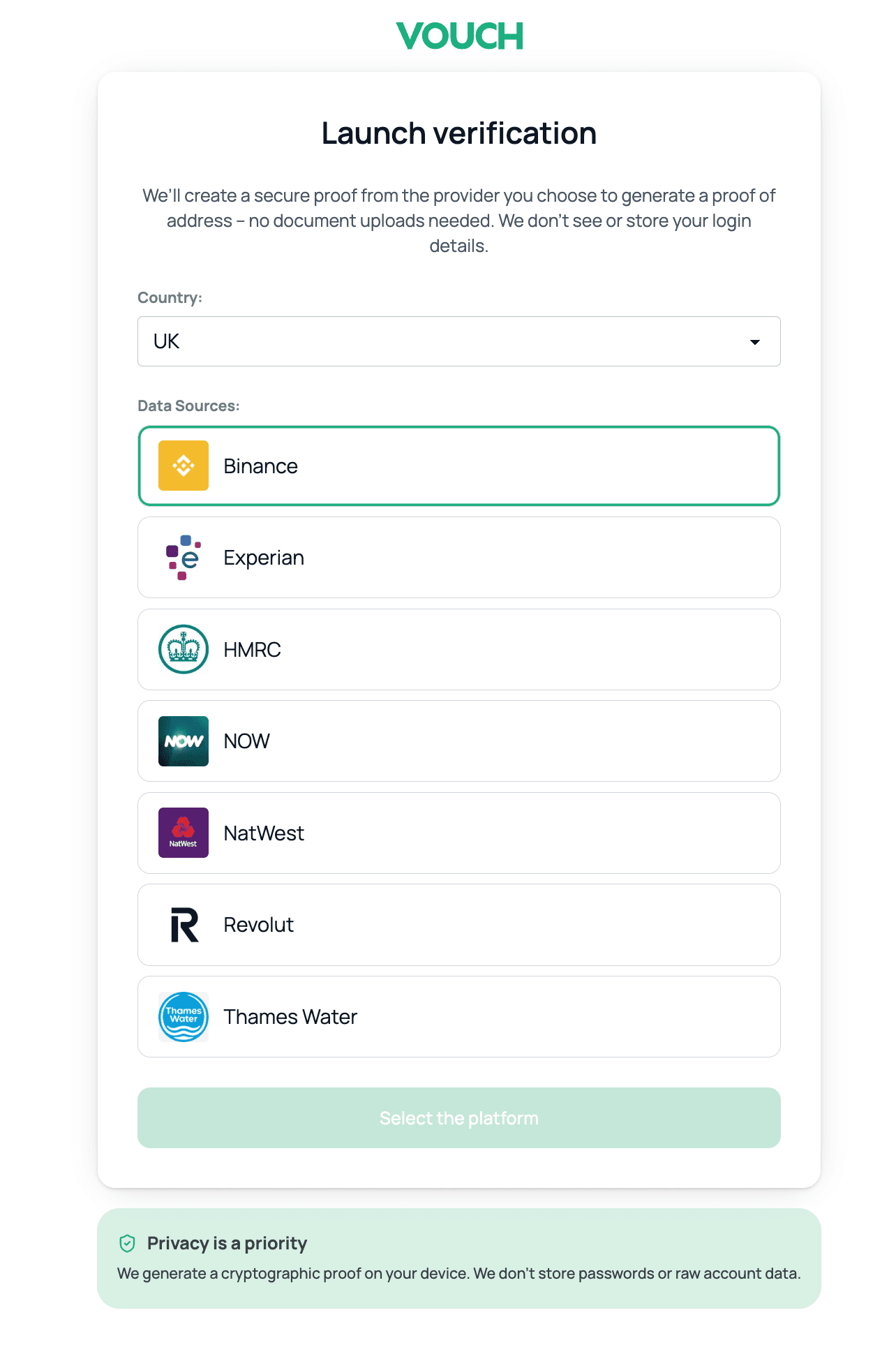
Vouch widget is an embeddable and customizable verification interface that displays data sources to your users. You can embed the widget directly in your application, allowing users to see and select from available data sources without leaving your site.
For example, a "Verification of address" widget might offer Revolut, NatWest, Experian, and Binance as options. The user selects whichever provider they already have an account with, and the rest of the flow is handled automatically.
How it works
- You create a widget in your Vouch dashboard: first, choose the data source format, then pick the countries that you want to support and for each country select the available data sources.
- You generate a link to the widget using the Vouch SDK and redirect the user to it (or open it in a new tab).
- The user picks a data source from the widget and completes the verification flow.
- After verification, the user is redirected back to your
redirectBackUrl, and if configured, a webhook is sent to yourwebhookUrlwith the verification.
Integrating the widget
To integrate the widget, generate a URL with the Vouch SDK and redirect the user to it. No iframe is needed.
Install the SDK
npm install @getvouch/sdkyarn add @getvouch/sdkpnpm add @getvouch/sdkbun add @getvouch/sdkGenerate the widget URL
Use vouch.getWidgetUrl() to create a link to your widget, then redirect the user.
You can find your Customer ID and API key in the API Keys section of your organization settings.
import {Vouch} from "@getvouch/sdk";

const vouch = new Vouch({
    customerId: "YOUR_CUSTOMER_ID",
    apiKey: "YOUR_API_KEY",
});

const { verificationUrl, requestId } = await vouch.getWidgetUrl({
    widgetId: "YOUR_WIDGET_ID",
    redirectBackUrl: "https://your-site.com/verification-complete",
    webhookUrl: "https://your-site.com/api/webhook", // optional
    metadata: "user:12345", // optional, up to 256 characters
});

// Redirect the user to the widget
window.location.href = verificationUrl;
Widget parameters
| Parameter | Required | Description |
|---|---|---|
widgetId | Yes | The UUID of the widget, found in your Vouch dashboard. |
redirectBackUrl | Yes | URL the user is sent to after verification completes. |
webhookUrl | No | Endpoint that receives a POST request with the payload once verification is complete. |
metadata | No | Free-form string (up to 256 characters) returned in the webhook payload. |
Return value
getWidgetUrl returns a Promise that resolves to an object with:
verificationUrl: The URL to redirect the user to for displaying the widget.requestId: The unique ID of the verification request, generated by the server. Use it to correlate webhook responses.
Customizing colors and logo
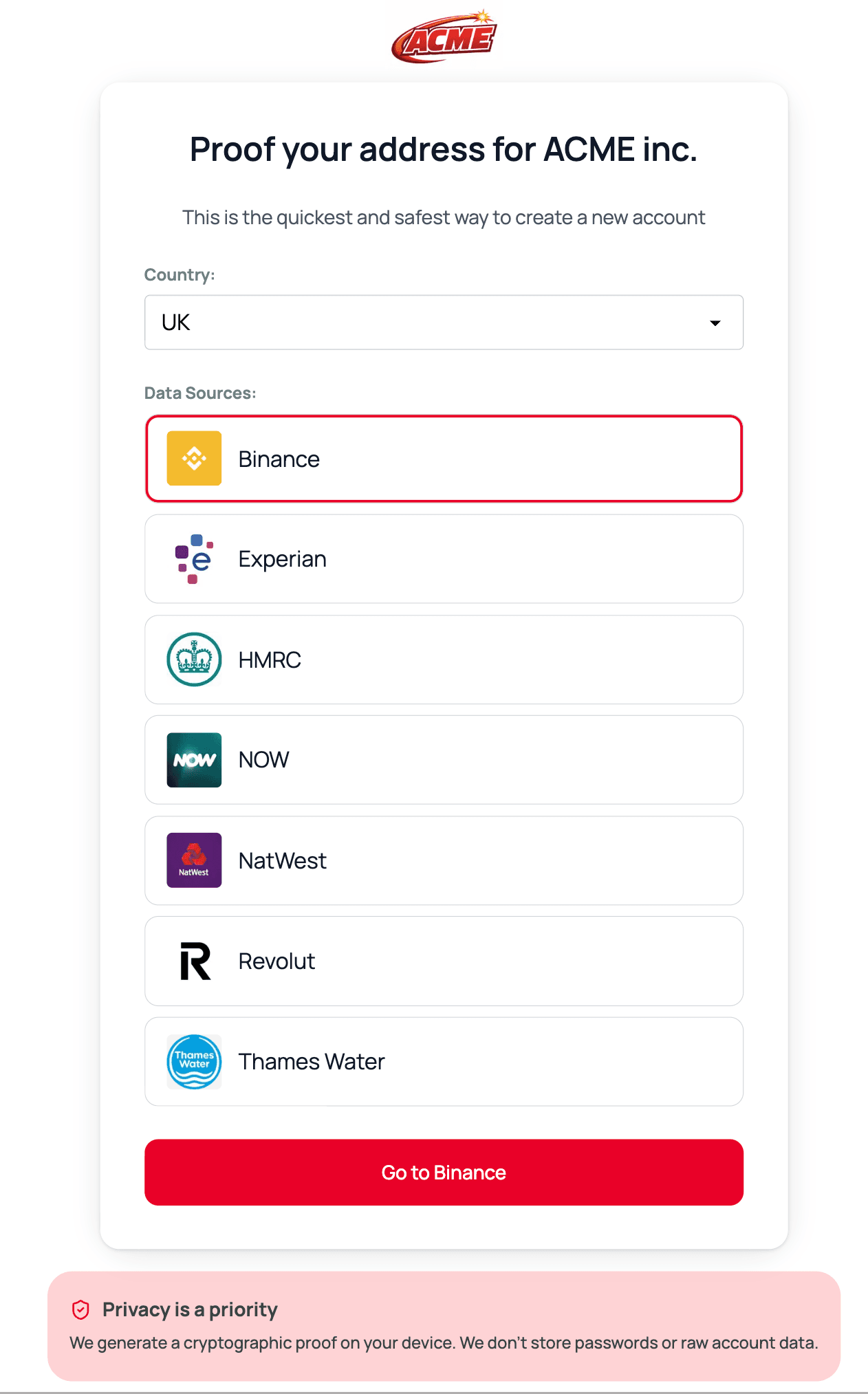
The widget's visual appearance — logo, colors, and other branding — is configured per organization in the Appearance section of your organization settings. These styles apply globally to all widgets under that organization; no per-widget style parameters are needed.
For more details on the full verification flow and webhook handling, see First steps and Verifying webproofs.